




Core Pain Point: You have successfully connected to CarPlay, the screen is on, but there is no sound—or the audio is still playing from your phone's speaker. This is a common issue we will address today.
Note: Our technical team at ANYFAR has identified that this is usually a simple audio routing setup issue, not a hardware defect.
Important Note: We currently have two different hardware versions of this kit, and their settings menus are slightly different. This article explains the setup for Version 1. If you cannot find the menu paths mentioned below on your device, it means you have Version 2. Please read our [ANYFAR Version 2 Audio Guide] instead.
Here are the exact steps to resolve the "No Sound" issue for Version 1:
Scenario 1: Your Car Has Factory "Bluetooth Music" Support
First, let's clarify the most common confusion: What is the difference between the car's original Bluetooth channel and the CarPlay Bluetooth pairing?
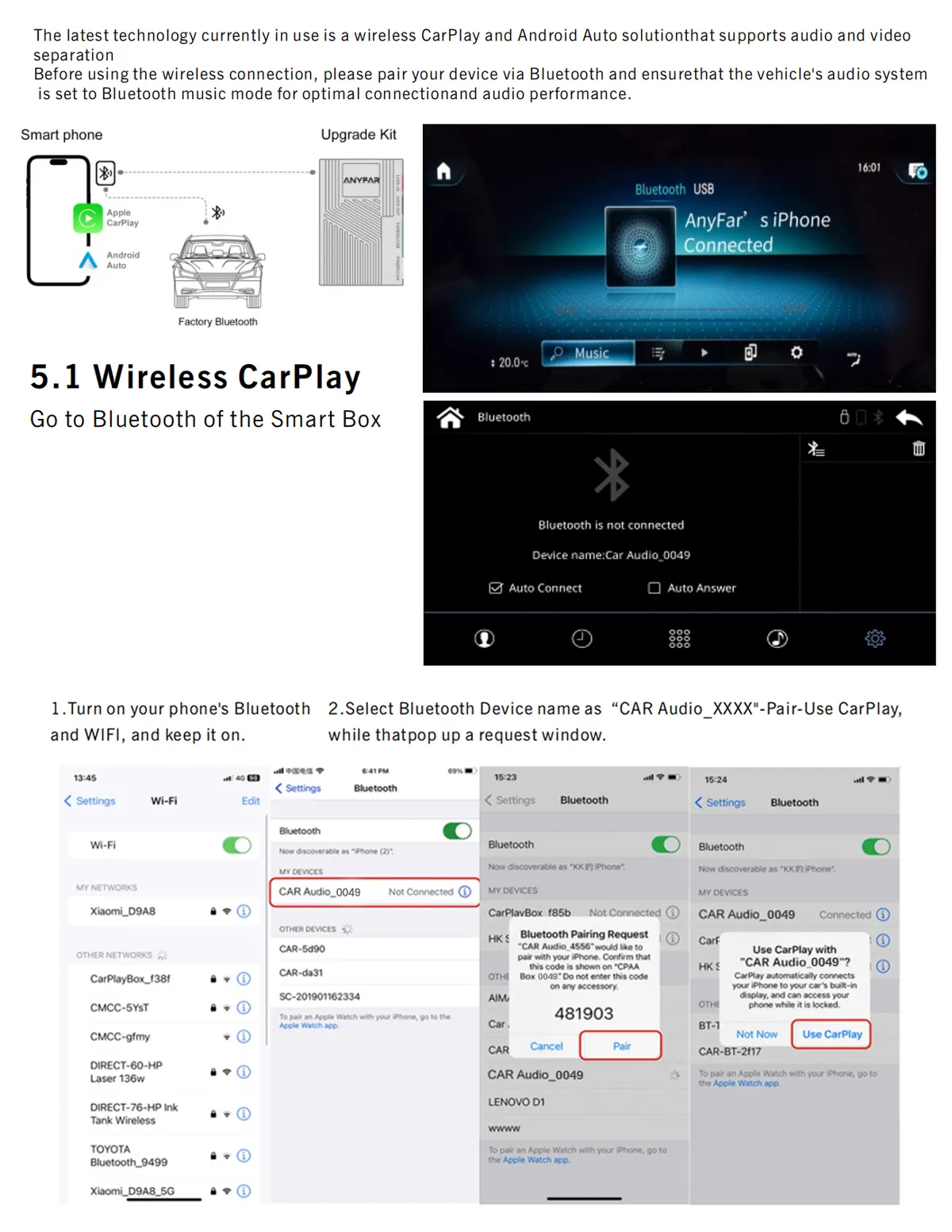
To get the best connection and sound quality, you need to complete both pairings (the order doesn't matter, but here is the detailed setup):
(1) Pair with the Car's Original Bluetooth:
Turn on the car. Find the original car's Bluetooth interface on the screen and search for your phone to pair it. You will see an option named "Car Audio_xxx" on the original car's Bluetooth interface. Then, pick up your phone, keep the Wi-Fi switch ON (no need to connect to any specific network), and turn on Bluetooth. Select and pair with "Car Audio_xxx". Once paired, it will connect automatically. Finally, make sure the vehicle's audio system is set to "Bluetooth Music" mode.
(2) Pair with the CarPlay/Android Auto Module:
Once you have successfully connected to the original car's Bluetooth, when you open the CarPlay/AA interface, it may pop up a prompt saying: "Please connect Android bluetooth or insert USB cable".
At this point, go to the CarPlay interface main screen and click the third Bluetooth icon. It will show the "Car Audio_xxx" option. Again, keep your phone's Wi-Fi ON (no network connection needed) and turn on Bluetooth. Select and pair with "Car Audio_xxx". Once successfully paired, it will connect automatically.
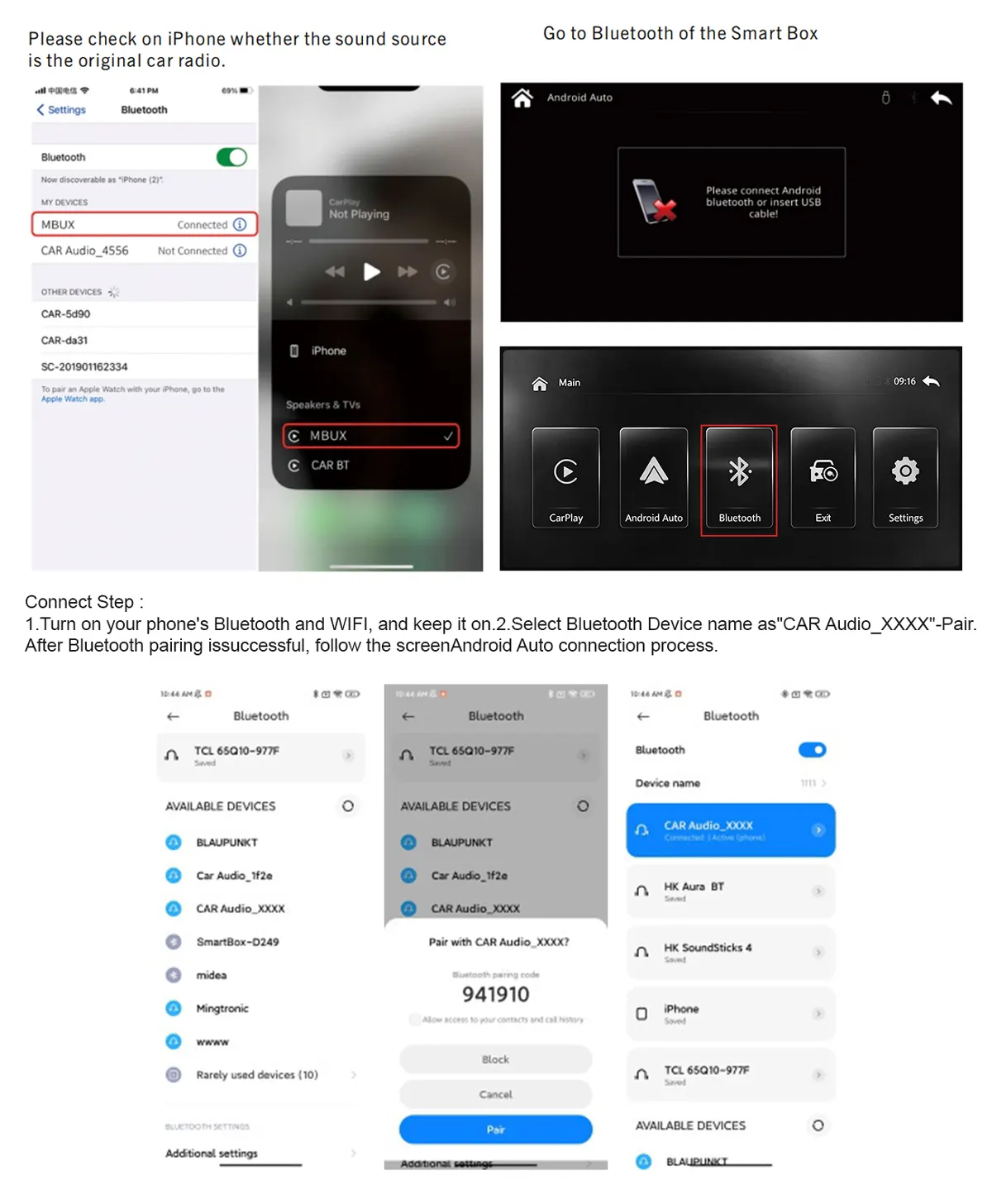
After completing the above steps, the sound will be transmitted through the car's original Bluetooth channel, not the phone speaker.
(P.S. The order of these two steps does not matter—either one first is fine).
2. Vehicles without "Bluetooth Music" function need to connect via AUX:
Connect the AUX plug on the power cable and the external microphone. Switch the original car system to AUX audio. In the connection settings, turn off the "Audio/Video Separation" mode.
(Steps: Settings → Factory Settings → Phone Link Settings → Uncheck "Disable phone link audio" → Save → Go back to the previous level → Reboot. The setting is invalid if not rebooted).

AUX Still No Sound? Check These 3 Things:
(1) Has the original car system been switched to the AUX audio interface? Also, confirm that your phone's media output mode is selected as "Car Audio_xxxx".
(2) Has the original car's fiber optic cable been routed back to the original car head unit?
(3) Confirm if the AUX plug and wire harness are securely plugged in. Sometimes, loose connections during installation can affect the sound. We recommend unplugging everything and reconnecting.
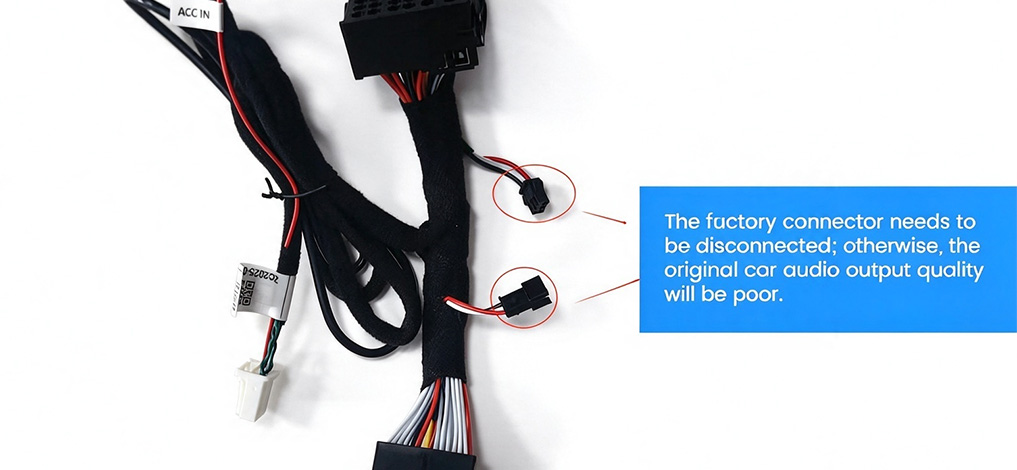
💡 Additional Tip: If you are using an AUX connection and experience occasional static noise, try disconnecting the small adapter plug on the wire harness (the factory pre-connected mating plug).
Note: Audio routing setup issues are common across all aftermarket retrofit kits. To achieve the most complete and lossless audio experience, these specific routing steps are indeed necessary. At ANYFAR, we provide detailed guides and dedicated support to walk you through the process.
Don't want to deal with these setup headaches alone? When you buy an ANYFAR CarPlay Module, you get lifetime technical support to help you through every step.